
The Search and Intelligence features of Microsoft 365 provide a way to enhance the search experience for users. It can help overcome many of the common complaints people about not being able to find things and provides insights to help you understand what needs fixing.
The Search and Intelligence Admin Centre is accessed via this URL: https://admin.microsoft.com/Adminportal/Home#/MicrosoftSearch
Insights
What are people searching for? Where are they searching? What results do they like? What aren’t the finding? The Insights tab helps Search Admins answer these and many other questions.
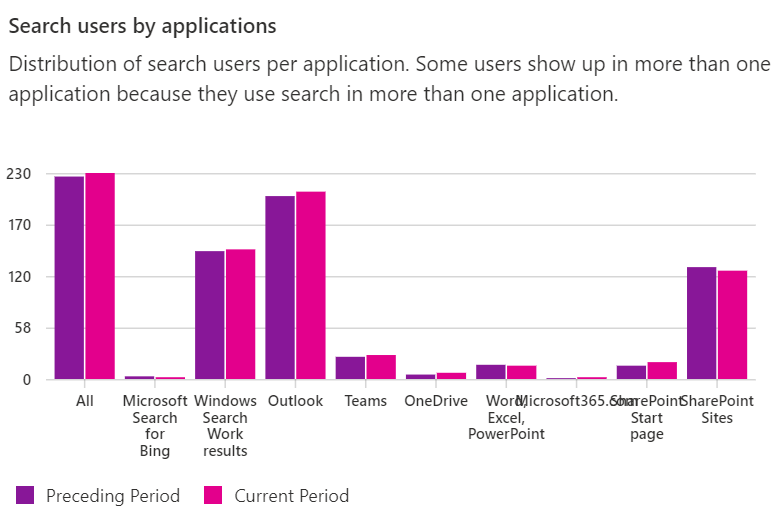
You might be surprised to learn that people use Microsoft Search from applications you might not expect. In the screenshot below, you can see “Windows Search Work” and “Outlook” winning the search race, with SharePoint in third place.
Query Analytics can be used to see what key words people are using, what links they click. Abandoned Search results identify where someone has searched and not clicked anything. This might give clues to help improve Search.
Answers
The Answers tab is where you enhance Search by configuring several different custom result types.
- Acronyms is used to create a glossary. When a user search term matches the acronym, the definition is displayed in the Search results.
- Bookmarks allow you to promote a specific link (page, document, or any other URL) when a user searches using a term you define. For example, Leave, Sick and Holiday could be configured to display the Leave Guide on the Intranet.
- Locations provides a way of visually presenting a map or office layout.
- Q&A allows you to create a more comprehensive result using Markdown. The result can include images, text, multiple hyperlinks and basic formatting.

Example Acronym Result. Searching for STP returns an Acronym result for Stratos Technology Partners.

Example Q&A Result. In this case I have searched for Sick and the “Leave” Q&A is shown at the top of the result.

CSV files can be used to bulk upload the data to configure these result types. You don’t need to aim for perfection before launching. Additional terms can be added over time and you should review this occasionally to ensure the configuration is still relevant. Some ideas to try if you are short on time and don’t know where to start:
- Add 10 common acronyms new people might not know.
- Add bookmarks for common HR related content – induction, hiring forms, leave requests, policies
- Add answers with profiles of your Senior Leaders e.g. a photo, blurb and link to their LinkedIn.
- Look at your to 10 abandoned searches and add bookmarks or answers to help people find the right thing.
Answers allows Search Administrators to enhance the search experience for end users. In my experience many organisations don’t do any configuration here, yet a small amount of effort can make a big difference for end users.
As well as doing these things, you should also educate people on Search. Help them understand the different scopes in SharePoint (Organisation, Site, List / Library). Share tips and ask for feedback.
Discover more from SharePoint Moments
Subscribe to get the latest posts sent to your email.
