
I’m a fan of Document Sets for complex document management scenarios. Document Sets are a great way to store related documents together (folder style) while also adding metadata that can inherit to each document stored in the document set.
The use case for Document Sets is usually where you have a requirement to store related documents in one place and also want the ability to tag some metadata to each document. For example, in Contract Management solutions we often store not only the signed contract, but also correspondence, contract variations, schedules etc. All documents related to a specific contract are tagged with the same contract number and supplier name. Similar requirements often apply for process management, quality systems, client folders, export documentation and many other cases.
To enabled Document Sets and add them to a Document Library, follow these steps:
- In SharePoint Site Settings > Site Collection Features > Enable Document Sets
- In SharePoint Site Settings > Site Content Types
- Create a new Content Type with Document Set as the Parent
- Configure the Content Type with Site Columns (Metadata columns)
- Configure which Site Columns inherit to documents in the document Set
- Configure which Content Types (other document content types) can be used in the Document Set
- In your Document Library
- Choose Library Settings > Advanced Settings > Enable Managed Content Types
- Add the Document Set to the Library
- Add any other Content Types to the Library

A user with Edit rights to the library can now create a new Document Set in the library. Creating or uploading a document into the Document Set will add meta data to the document automatically.
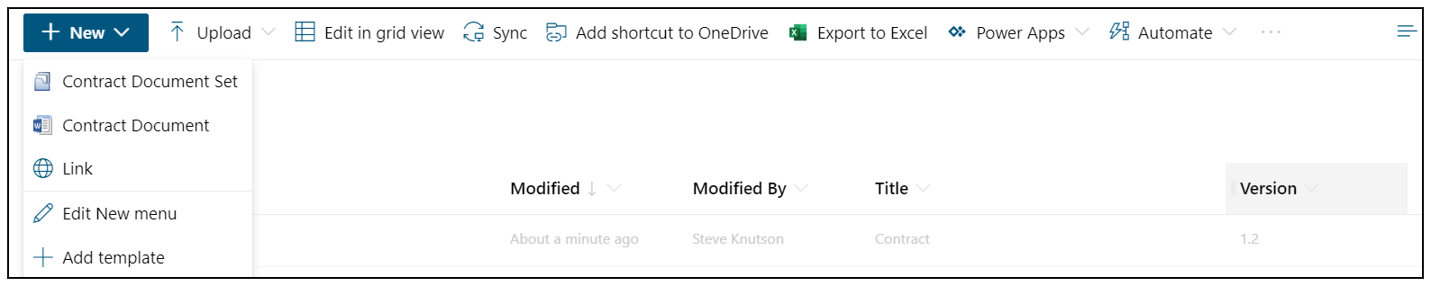
You can also have additional metadata columns that aren’t included in the Document Set, either configured on the library or with Document Content Types. For example, you Document Set might have the Contract Number, Supplier and Contract Status. The Document Content Types may also have Start Date and Review date (at the document level).
The most common use cases for Document Sets is where you need to collect a group of documents that are related and share common metadata. Here are a few examples of where I have used Document Sets:
- Job packs – each job has a quote, design docs, health & safety sheets and photos
- Export documentation – each export order has a collection of related documents
- Client folders – each client has a collection of proposals, quotes, agreements, and related documents
A few other Document Set facts:
- Document Sets are based on Folders, and appear as folders from Windows Explorer or OneDrive Shortcuts.
- Metadata does not appear in Windows Explorer.
- Views that hide folders will also hide Document Sets.
- You can create folders inside a Document Set
- You cannot create Document Set inside a Document Set.
Document Sets aren’t the right solution for every scenario. You can also use metadata on documents themselves to group files together or even standard Folders. Think about the use cases you have before embarking on the Document Set adventure, there are many benefits but some users may find the complexity isn’t worth the effort.
Discover more from SharePoint Moments
Subscribe to get the latest posts sent to your email.

Nice blog. Thanks for sharing..!!
Contract Management Software for Engineering
Nice blog, very useful information!
Question: Is it possible to have a document set within a document set?
Scenario: I have a parent document set for the project level, I use this to push the project number, name, customer, etc… to all the child documents.
Now within that project, I have another set of documents that are related to the project and inherit from the metadata of the project document set. But have in comments some other metadata specific to that document set.
Hi Adrien, unfortunately you can’t have a Document within another Document Set.
Content Types for the second level group of documents might be an option worth trying.
You can optionally inherit metadata from the Document Set to each document and then have additional metadata that is document specific.
Hi,
I am also fan of Docsets !
I noticed you can have a docset in another docset and it work well. The problem is that you cannot CREATE a docset directly inside the parent docset : you have to create it at the root level and then move it…
Anyway you should ask yourself whether such a solution is consistent and coherent with SharePoint spirit ? Or if you are not recreating the folder hierarchy of DOS…
Great content… very helpful. I’m tinkering with the welcome page that displays when you open a doc set. Is there a way to display the properties or metadata of the doc set right on the welcome page rather than clicking view all properties and seeing everything?
Hi Adam, unfortunately customising the welcome page isn’t supported in “Modern” document sets.
[…] Learn more about Document Sets. […]
Is there a way to remove the Name, Title and Description when adding document sets?
In the settings for the Document Set (Site Settings > Content Types) you can hide the fields, however you will still need to set a value for the name as that is the name of the Document Set folder.
Hi Steve, thank you for your reply. What is confusing is Microsoft allow user to hide or set the name field as optional, but it is actually required. Not sure why they would allow this when it will break the document set.
Hi Pauline, I agree. The only time I would consider hiding the name field is if I can creating the document set via script or API call. For example, creating customer doc sets using the customer ID as the name.