
PnP Modern Search is a collection of open source webparts for SharePoint Online. It features search refiners, verticals and customisable result templates.
This video demonstrates the how to create a custom search result. The code snippets and steps are outlined in this blog post.
Creating a Search Result Page
Start by adding the PnP Modern Search webparts to your tenant’s App Catalog. The latest release can be downloaded here: https://microsoft-search.github.io/pnp-modern-search/installation/
Once installed, you will be able to add the PnP Modern Search webparts to a page. In the screenshot below I have a Search Box, Search Filters and Search Results webpart.

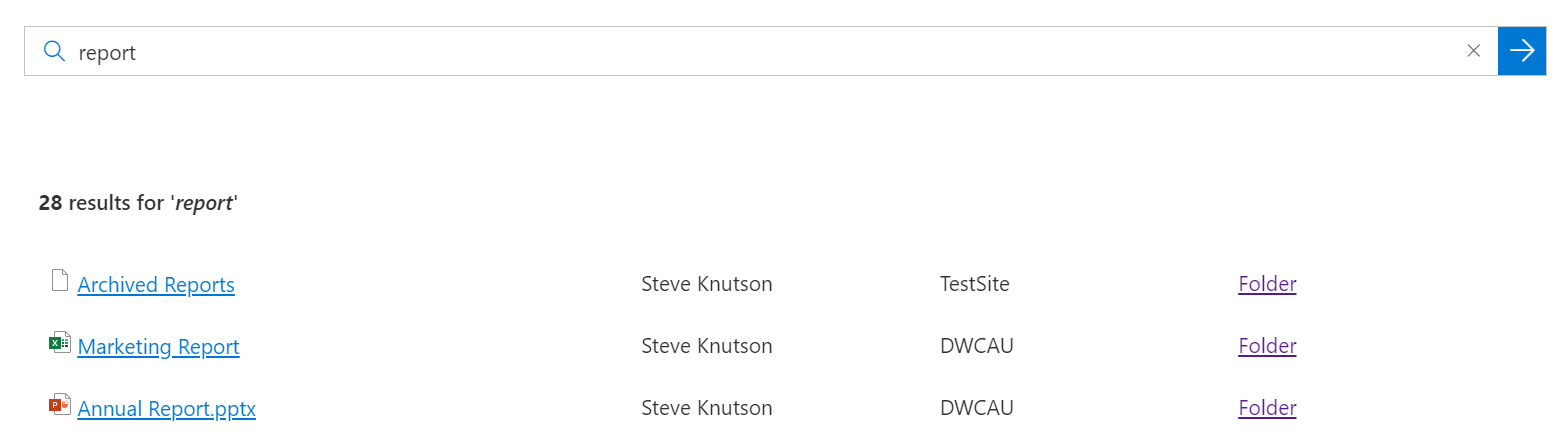
In the result webpart above, I have customised the result layout, adding the Author, Site Title and a link to the folder where the result document is stored.
Once you have added the webparts to the page and configured the connections, you can configure the Layout Slots. This allows you to map properties for use in templates.
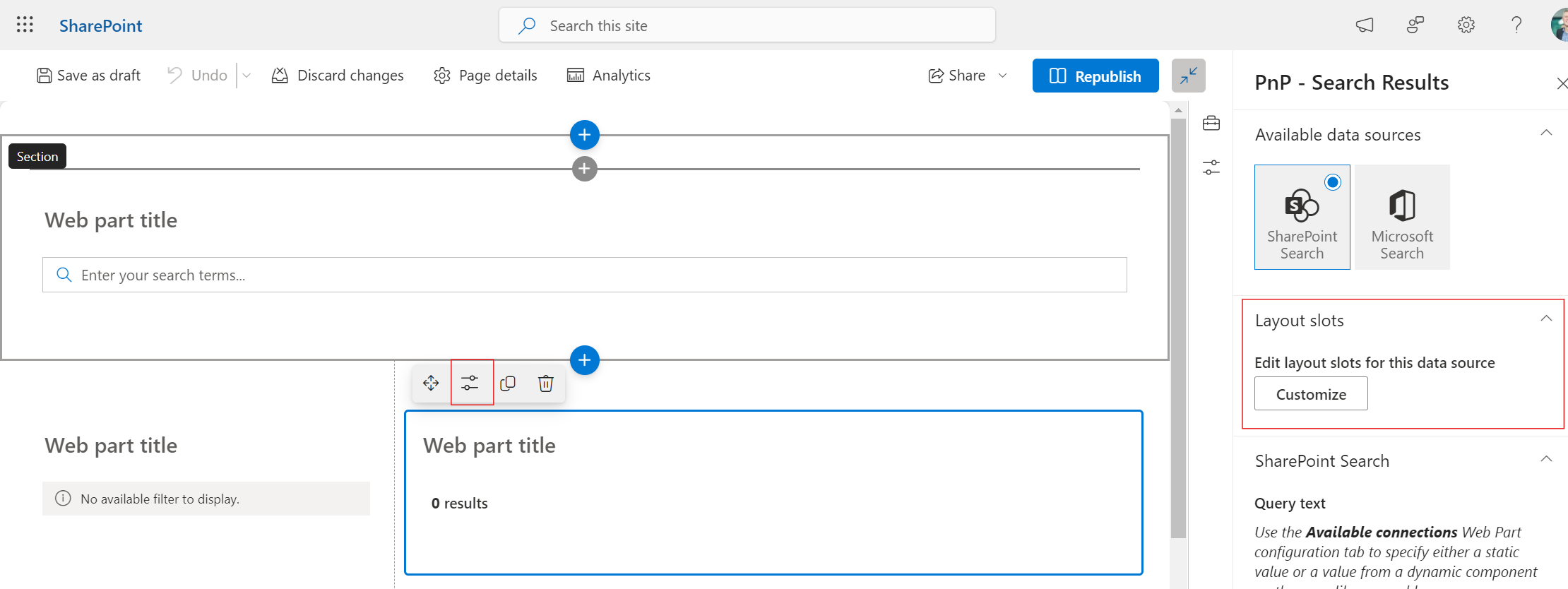
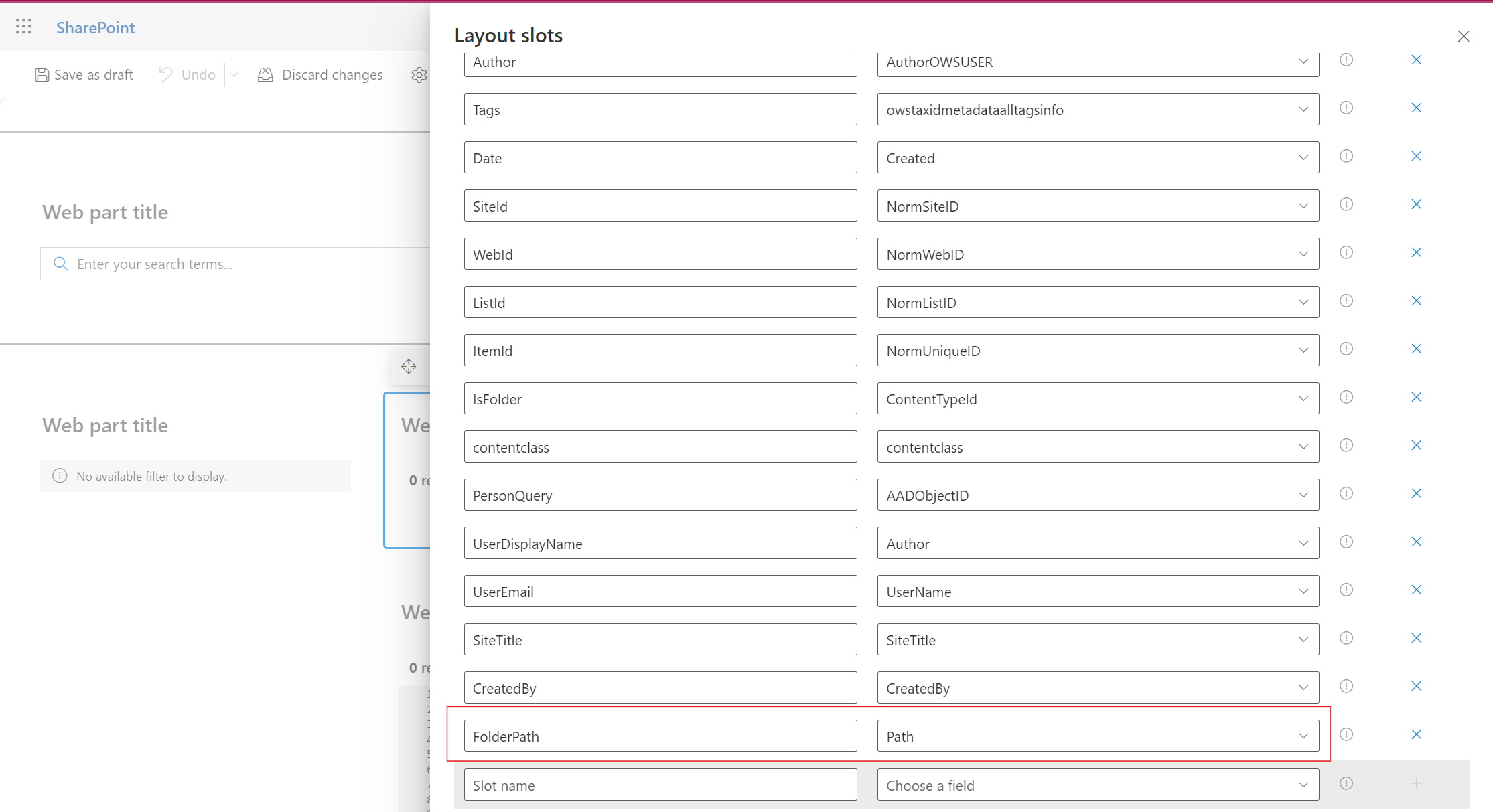
I added “FolderPath” (the label) and mapped it to the “Path” property. This allows the FolderPath token to be used in Handlebars code used to create the custom result layout.
In the “Template ID” section of the result, I expanded the code, adding an HTML table to layout the Filename, CreatedBy, SiteTitle and Folder link.
On the second page of the Results webpart, click Custom and then edit the results template. This will give you a basic template that you can copy into your HTML editor of choice and edit.

Find the “template id” tag and edit the result layout. You can use Handlebars tags to map the Layout Slots (see above) into the HTML code. Once done, paste your code back it the result template and choose save.
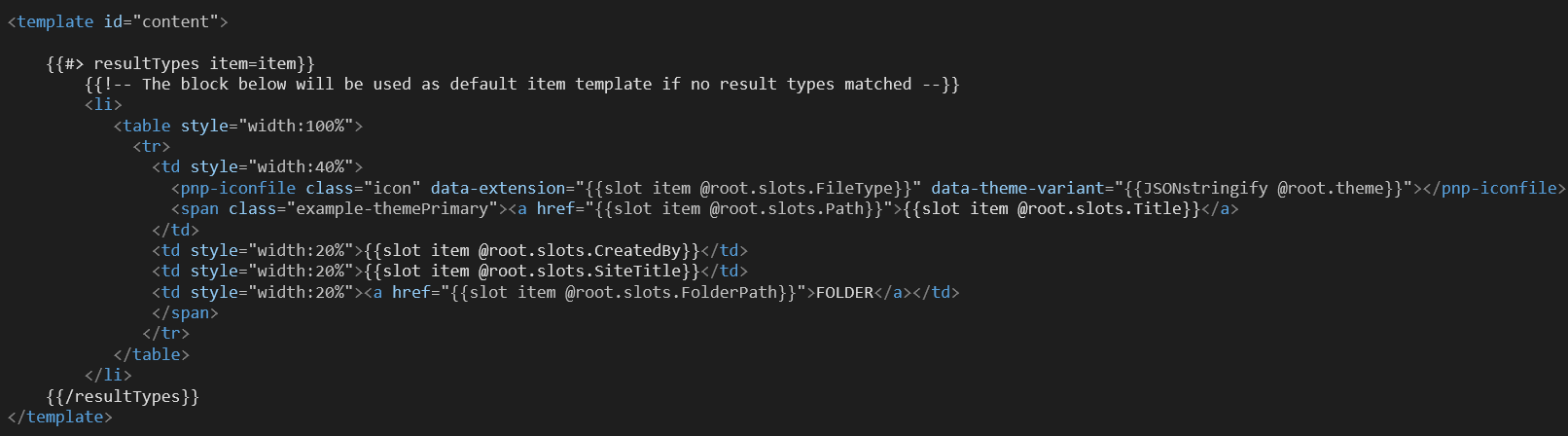
Here is the code snippet I used for the result above.
<table style="width:100%">
 <tr>
   <td style="width:40%">
      <pnp-iconfile class="icon" data-extension="{{slot item @root.slots.FileType}}" data-theme-variant="{{JSONstringify @root.theme}}"></pnp-iconfile>
      <span class="example-themePrimary"><a href="{{slot item @root.slots.Path}}">{{slot item @root.slots.Title}}</a>
   </td>
   <td style="width:20%">{{slot item @root.slots.CreatedBy}}</td>
   <td style="width:20%">{{slot item @root.slots.SiteTitle}}</td>
   <td style="width:20%"><a href="{{slot item @root.slots.FolderPath}}">FOLDER</a></td>
   </span>
   </tr>
</table>
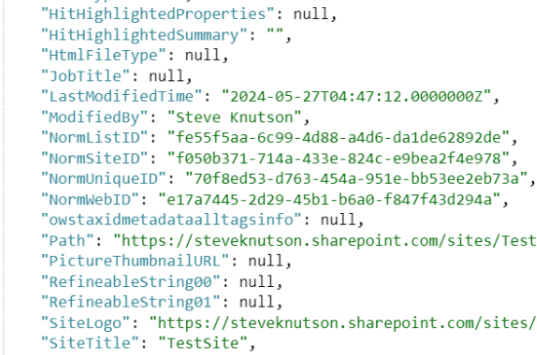
To get a list of properties that can be mapped into the Layout Slots, use the Debug layout and search. This will show the properties available. Here are some of the properties including RefineableStrings that I have registered as Managed Properties in the Search Schema.
One requirement I had was to open the parent folder of the search result. For example, if the document was in a subfolder, include a hyperlink in the result template that opens the folder. To do this I used the “ParentLink” Managed Property.
In the Search Result webpart, select the ParentLink propery.

In the template, I created a hyperlink referencing the ParentLink Slot item. Note that I also open the link in a new tab, which is nicer for the end user.
<a href="{{slot item @root.slots.ParentLink}}" target="_blank" data-interception="off">Folder</a>The end result is a search result with a hyperlink to the parent folder of the item shown in the results.
It is important to save a copy of your template as it is easy to lose it when switching layouts. You can save an HTML file and then reference this via the “Use an external template URL” option directly below the custom layout setting.
To learn more about Custom Layouts and to see examples, visit: https://github.com/microsoft-search/pnp-modern-search-layouts/blob/main/README.md
A huge thank you to the PnP Modern Search contributors who have created an incredibly powerful solution for creating Search driven solutions in SharePoint.
Discover more from SharePoint Moments
Subscribe to get the latest posts sent to your email.
