
In my controlled document video series I walk through the basics of building a document management system with SharePoint and Power Automate. This is great for people who access documents using the SharePoint web interface, but what if you wanted to create a simplified user interface for your users? Access on mobile devices is often a challenge.
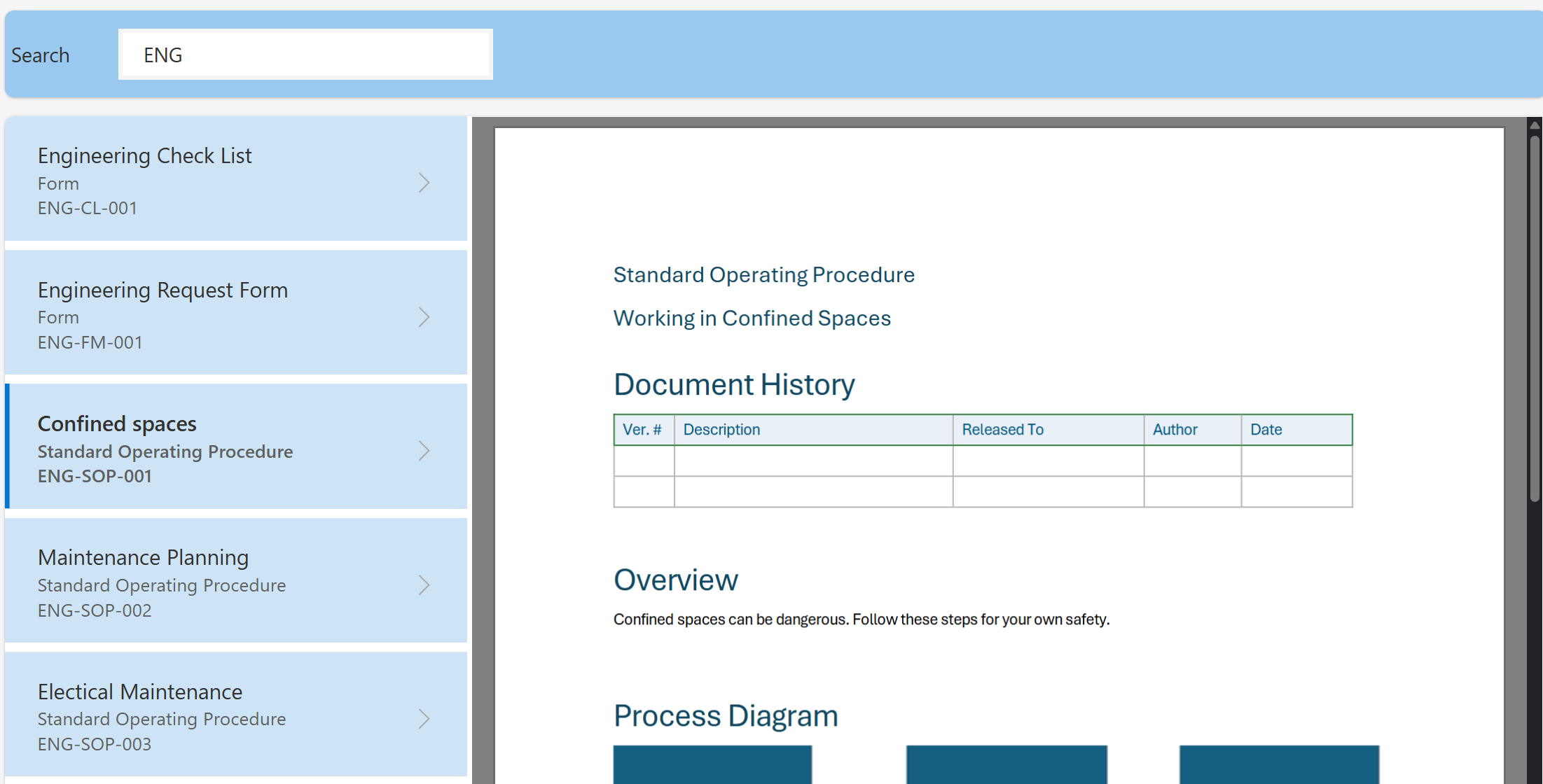
In this video I create a PowerApp that is connected to the Controlled Document library. I demonstrate creating a basic file viewing app that works with native Microsoft Office documents and PDF files. This app will work in a web browser, iPad or Android tablet. It is also possible to make a responsive mobile layout app.
There are some limitations including the delegation limit when accessing large numbers of documents. By default PowerApps will only see the first 500 items (can be increased to 2000). Filtering or paging could be used to work around this limitation. The reason for the delegation limit is performance, more items means slower load time for the gallery component in the app.
Build notes:
In the demo I create a canvas app in PowerApps studio (learn how to create a canvas app). The app itself is quite basic apart from a function to render office documents as PDF so they work in the PowerApps PDF control and a Search function to allow searching on the gallery of documents.
Here are the specific build steps:
- Add a Gallery and connect it to your SharePoint Document Library
- Add a PDF viewer and configure the Document property using this function
- Substitute(Gallery1.Selected.Thumbnail.Large,”/thumbnail”,”/pdf”)

- Add a text box (for the search box)
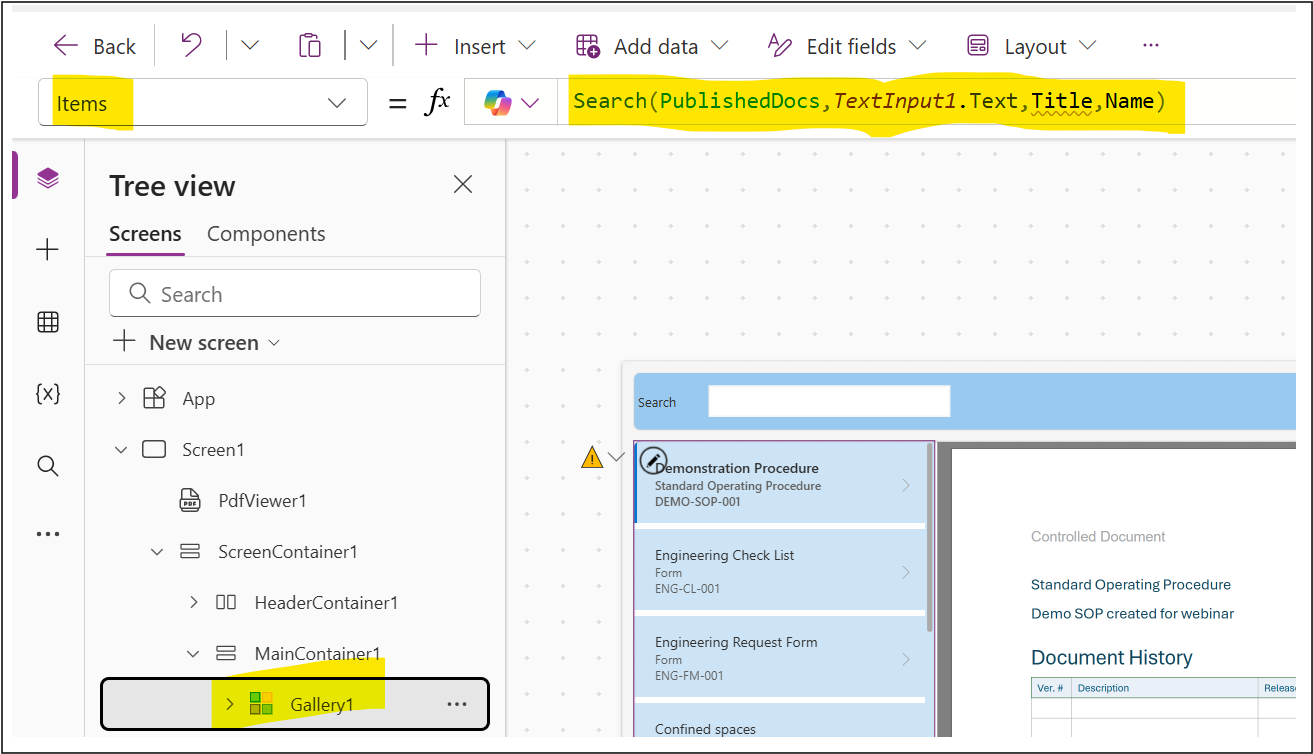
- Configure the Items property on the Gallery to use this function (Title and Name are metadata fields in the gallery):
- Search(PublishedDocs,TextInput1.Text,Title,Name)
Controlled Documents Video Series:
- Part 1 – Creating the SharePoint site and approvals
- Part 2 – Automating reminders
- Part 3 – PnP Modern Search setup
If you need to give access to people who don’t need the full collaborative features of SharePoint or need access on a tablet device, in a factory or industrial workplaces, this approach may be for you.
Discover more from SharePoint Moments
Subscribe to get the latest posts sent to your email.
