
If you open a PDF in SharePoint, it defaults to opening in the SharePoint PDF preview. This is great if you want to use features like eSignatures, annotate the content, merge PDF files etc. You can right click a PDF file and open in the Browser or App but that’s not always obvious for end users.
If you want to allow users to easily open in the browser, you can use a bit of JSON code to format a metadata column on your document library, creating a button that opens the file.
Here are the steps:
- Create a Single Line of Text column on your document library.
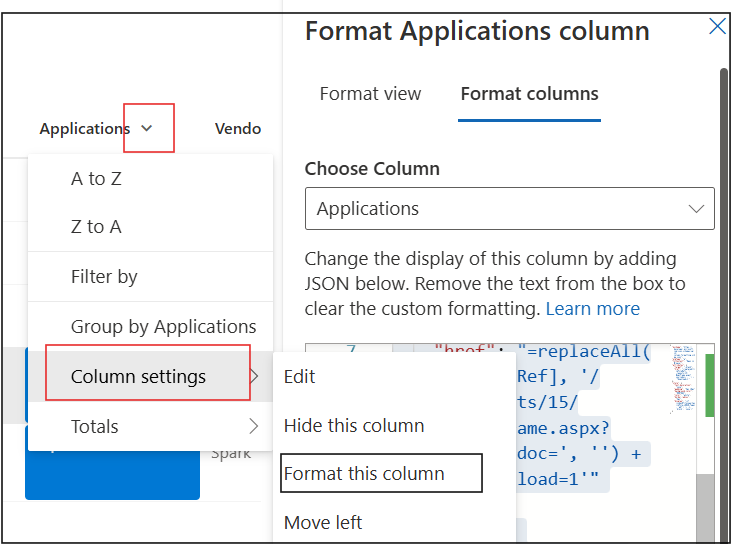
- Choose the down arrow next to the Column name > Column Settings > Format Column.
- Choose Advanced Mode.
- Paste the code below and save.
JSON Column Formatting
{
  "$schema": "https://developer.microsoft.com/json-schemas/sp/v2/column-formatting.schema.json",
  "elmType": "a",
  "txtContent": "Open in Browser",
  "attributes": {
    "target": "_blank",
    "href": "=replaceAll([$FileRef], '/_layouts/15/WopiFrame.aspx?sourcedoc=', '') + '?download=1'"
  },
  "style": {
    "text-decoration": "none",
    "padding": "5px 10px",
    "background-color": "#0078d4",
    "color": "white",
    "border-radius": "3px",
    "display": "=if(indexOf(toLowerCase([$File_x0020_Type]), 'pdf') != -1, 'block', 'none')"
  }
}
The button should appear in your library like this. This code only shows the button if the document is a PDF file.

Clicking the Link will open the PDF file in a new browser tab using the browsers built in PDF viewer rather than the SharePoint PDF viewer. The PDF file isn’t downloaded to the local computer.
Open in the Browsers PDF viewer

Open in the SharePoint PDF viewer

Why would you want to do this? There are several common reasons for opening the browser. Better viewing experience for large PDF files, limiting functionality for users where we don’t need the bells and whistles and the ability to use browser extensions and native functionality.
Discover more from SharePoint Moments
Subscribe to get the latest posts sent to your email.
