
Copilot in Word is one of the features I use frequently. From the beginning I have been wishing for the ability to reformat or update formatting in a document. It seemed to be an obvious feature that was missing for one of the most time consuming issues often have when people produce documents without the right formatting.
Help is on the way!
Microsoft have started rolling out Agent Mode in Office Applications including Word , Excel and PowerPoint. These Agents have the ability to edit and format the content of your document or spreadsheet using a prompt. In this example I have used Agent Mode in Word to format the document and update the fonts to ensure they are consistent.
Agent Mode in Word can also use a source document and apply the styles in the source document to the document it is editing. Simply type a prompt saying “apply the styles from this document” and click the “+” option to add an attachment. Copilot applies the styles and you can accept or decline.

Other time saving capabilities include; applying document numbers, removing numbers, reformatting specific styles, and updating a table with figures from an updated source. Think, updating the monthly sales report with new figures.
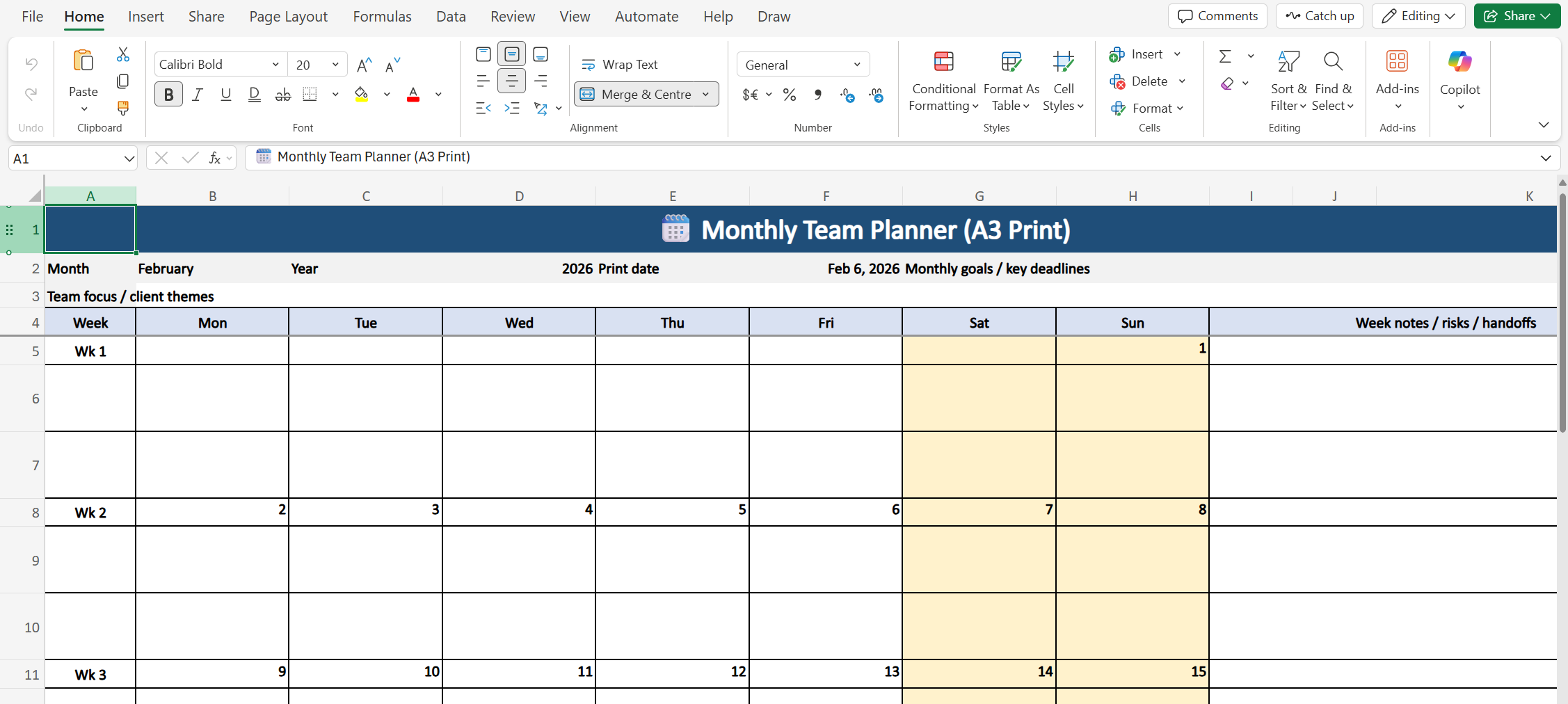
I asked Copilot in Excel to create an A3 planner and hit entered. A headed off to complete a couple of small tasks, returning a few minutes later to a nicely formatted planner sheet in A3 format. I also tested creating a Project Risk Register and RACI and the results were very good. It is a real time saver!
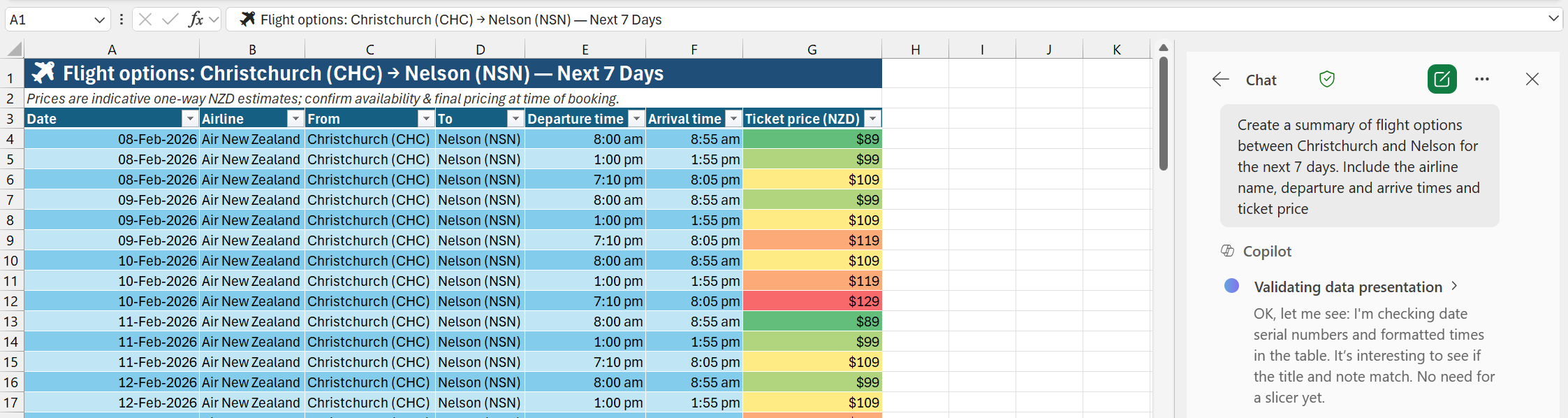
In this example, I have used Agent Mode to generate a list of flights with times and costs. The Agent has used an Internet Search to locate flights matching the details and then formatted a table including a heat map. Notice the prompt doesn’t ask for the heatmap, the Agent has decided this would be helpful, it is!
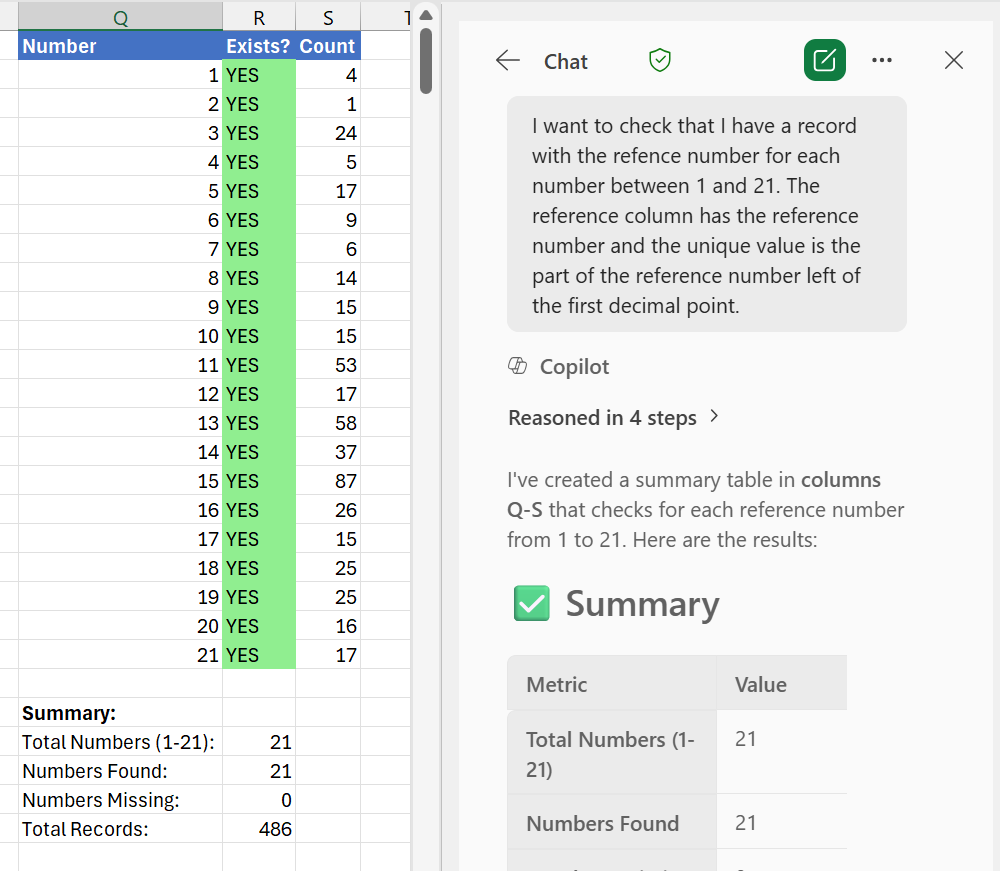
To really put Agent Mode in Excel through its paces, I created a prompt to analyse an exported File Plan configuration from Purview. I wanted to make sure I had a rule for each item in the corresponding Retention and Disposal schedule. To do this, Excel would need to take the highest order values from the Record class which is encoded in the File Plan name, then work out if their was a number for each parent record class before generating a table of all the parent record classes and a count of the File Plans in each class. I hit go and walked away from my desk to have a conversation with someone on a different topic. I returned to my desk a few minutes later and the task was done. I checked a couple of results manually to cross check the results. Perfect!
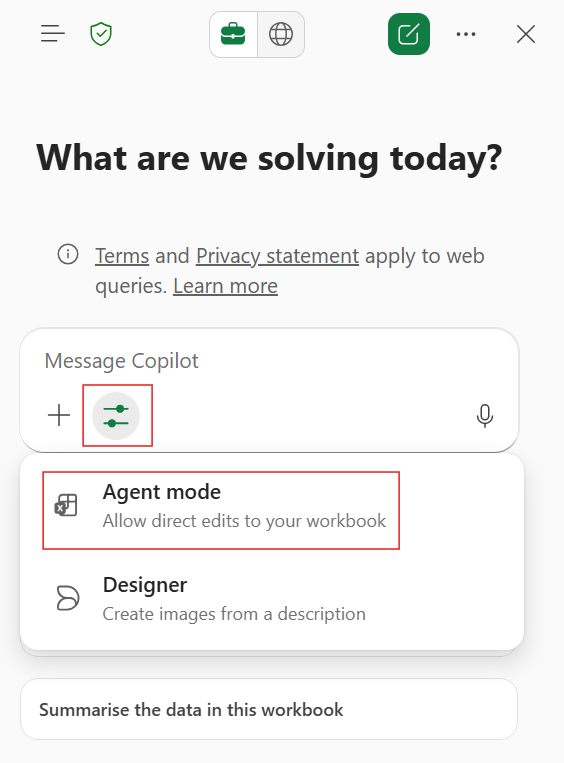
To access Agent Mode you must be licensed for M365 Copilot. Click the Copilot icon and then use the settings option to select Agent Mode. It would be nice if this was a little more visible because it is a great feature.
Agent Mode is a big step up in capability for M365 Copilot because of the ability to edit the document content rather than just a selected area of the document or spreadsheet.
Here are some ways Agent Mode improves Microsoft 365 Copilot:
- Draft a document using a source document as the model
- Update formatting and numbering
- Update data in a table using new source data
- Create a spreadsheet including adding calculations
- Search the internet and pull data into a document or spreadsheet
- Research including using trending data on social media
- Reference selected content as a data source
- Much more!
You can ask the Agent to ask you for clarification before proceeding with different steps in a process. This allows you to remain in the loop while Copilot handles the heavy lifting.
I have been using Agent Mode for a week and my biggest observation is that it makes a significant improvement to my flow of work. Big wins include; creating a job advert from a job description, fixing formatting on a document and building a template spreadsheet for a business case.
Give it a try!
Discover more from SharePoint Moments
Subscribe to get the latest posts sent to your email.
