
Sometimes you just want a quick solution for simple notifications based on changes to files or list items. In classic SharePoint we had Alerts (this feature is end of life), but there is also a modern way to create simple notifications. This an easy solution for end users as they don’t need to understand Power Automate and the creation process is point and click. Microsoft have also added the ability to perform manual actions on documents and list items using the Quick Step feature.
Lets create a rule in a document library that runs when a metadata column value changes to a specific value.

The first step of creating a rule is to configure the trigger action. This is the Document Library event that triggers the rule. Rules can trigger when an item is modified, a new item is added or when a file is deleted from a library.
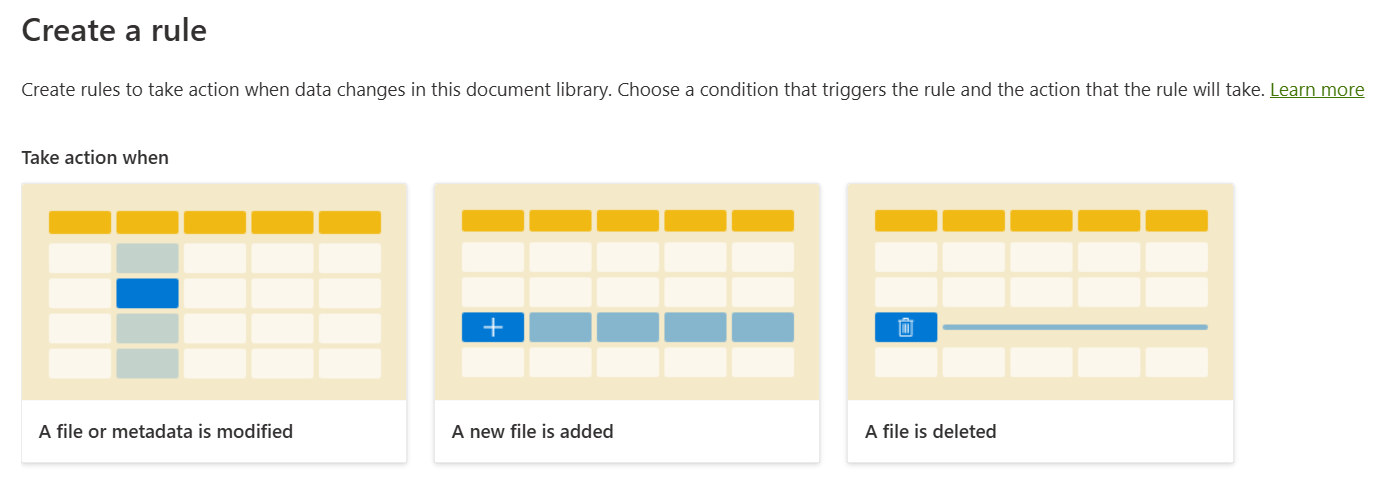
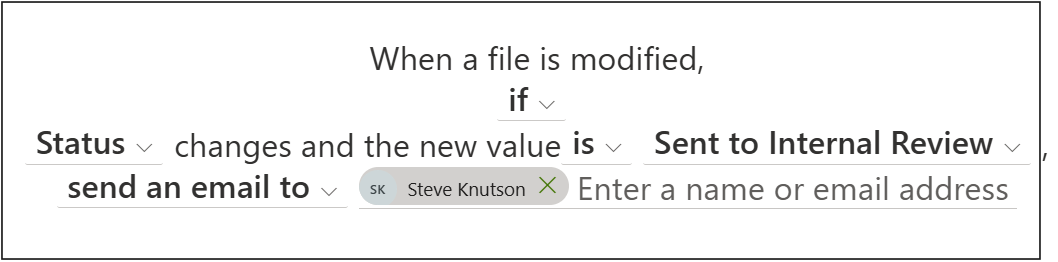
Next we configure the rule. In this case, I am using the “A file or metadata is modified” rule. By simply choosing and tailoring each of the options, I have created a simple email notification that sends an email to me when the status is changed to “Sent to Internal Review” (a value in the Status Choice column).
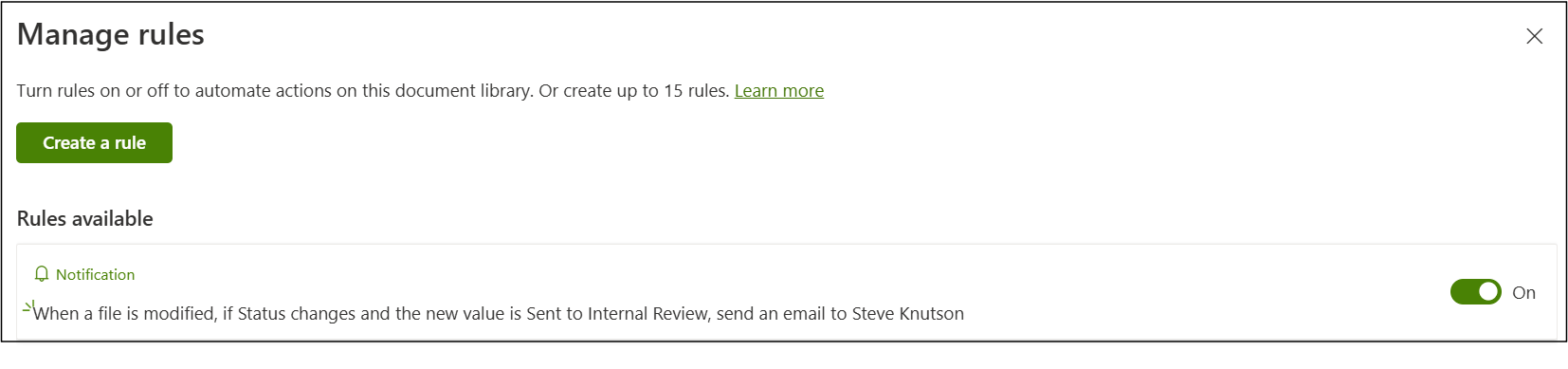
Once a rule is created, you can use the Manage Rules option from the same initial menu to update the rule if required.
Now if I update the status of a document in the library where the rule is applied, I receive an email like this.

So there you have it. A nice simple no-code way to add a notification to a document library without having to learn Power Automate. Perfect for many common requirements.
As well as sending an email, rules can also move or copy files. For example, move the file to a different library when it is ready to be published or archived.
The user must have Edit permission or better to be create a rule in the Library or List.
There are limitations, for example you cannot do a daily or weekly notification, a feature I frequently use with alerts. Rules are also missing on Site Pages libraries. For both of these problems you will need to use Power Automate to build a custom Flow on a Document Library or List.
Discover more from SharePoint Moments
Subscribe to get the latest posts sent to your email.

[…] Lists. They provide simple, no-code option for doing simple automations against documents. Where Rules can be used to trigger when an event such as a new file is created or modified, Quick Steps are […]
Hi,
If I want to receive a mail when the file is updated (Not metadata), which value do I need to select in place of Statut in your sample?
I have tried Modified, but I do not receive any mail.
Thanks for your feedback,
If you choose the “Went a file is modified” option and change the “”If” to “Always” it will trigger anytime the file is modified.