
Quick Steps make it super easy to creation actions in your SharePoint Document Libraries and Lists. They provide simple, no-code option for doing simple automations against documents. Where Rules can be used to trigger when an event such as a new file is created or modified, Quick Steps are manually triggered by a user.
From the Automate menu (at the top of a List or Library), choose Quick Steps and Create a quick step.

Choose the type of Quick Step you would like, for example Draft an email, Set a (metadata) value etc

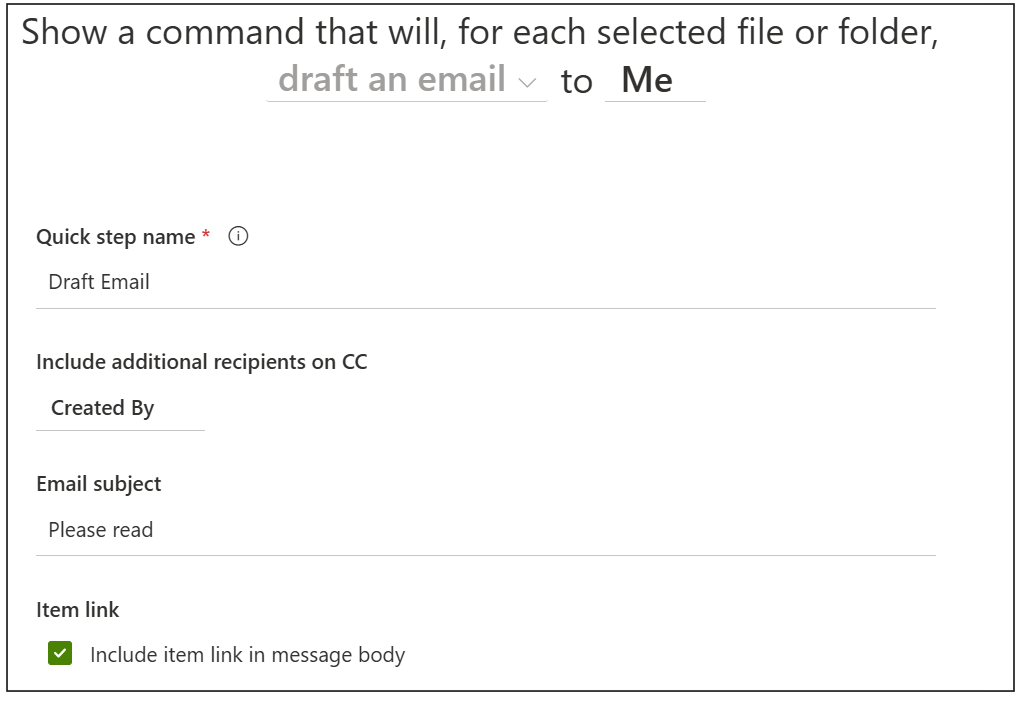
Follow the wizard to create the Quick Step and fill in the various values in the template. In the example below and email with a Link to the selected document is sent to me and the email is CC’d to the person who created the document.
Other actions allow you to start a Teams chat with a person, set metadata values or start a Flow for the selected documents. You can also use Quick Steps to start a workflow that will run against all documents in a library.
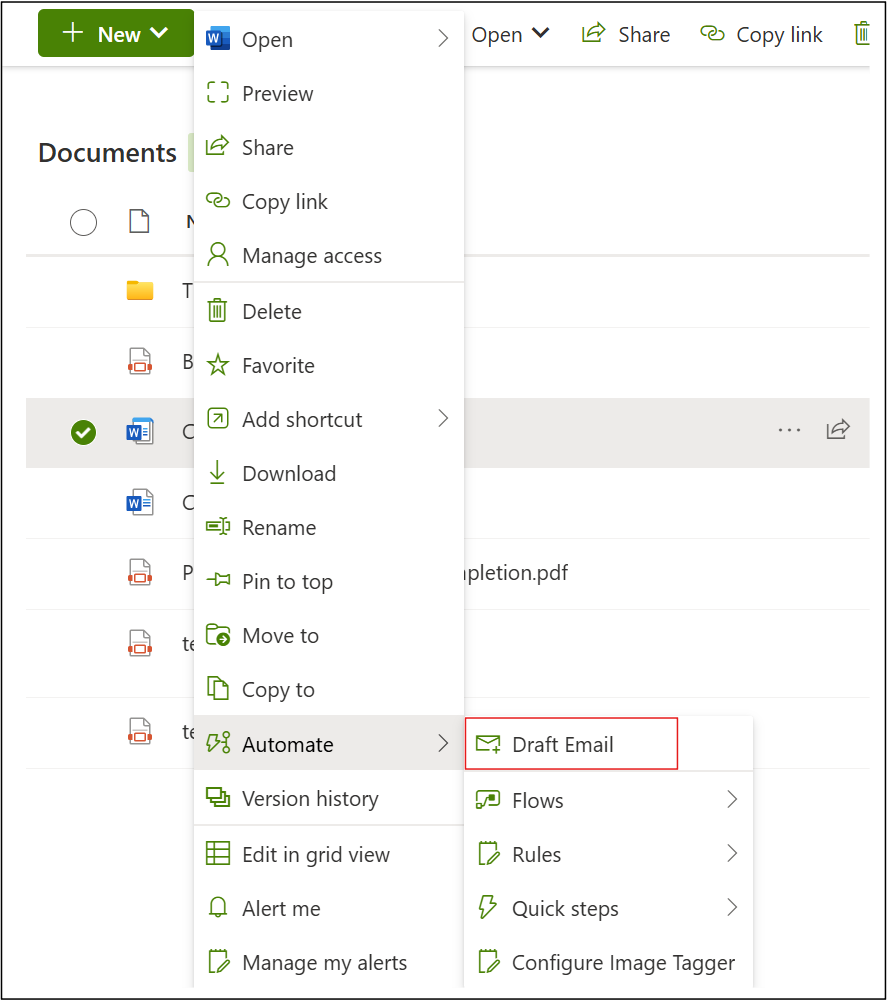
To use the Quick Step, right click the document (or use the context menu) and choose Automate. You will see the Quick Step at the top of the pop out “Automate” menu.
Here are some ways you can use Quick Parts:
- Automated Emails: Send email notifications to team members when tasks are assigned in a project list.
- Approval Requests: Trigger approval workflows for documents or requests in a SharePoint library.
- Teams Chats: Start Microsoft Teams chats with assigned users for new issues in a tracking list.
- Column Updates: Automatically set column values, like marking a vacation request as “Pending.”
- Custom Workflows: Run Power Automate flows for complex tasks, like onboarding new employees.
There you have it. A nice easy way to add simple automations to your Libraries and Lists, without having to learn Power Automate. However if you do know Power Automate, then you can use a Quick Step to trigger a Flow if needed.
Discover more from SharePoint Moments
Subscribe to get the latest posts sent to your email.

[…] have also added the ability to perform manual actions on documents and list items using the Quick Step […]