
PowerShell is a powerful tool for SharePoint Administrators. It can be used for all sorts of tasks to help automate the configuration, maintenance and governance of SharePoint. Many of the routine things I do are made much more efficient thanks to the wonderful people in the PnP PowerShell Team.
Recently I started working with a client who had been using SharePoint Online for around 8 years and had a mix of old sites migrated from SharePoint 2013, old sites that had been replaced by Microsoft Teams, newly created sites, private channel sites, Intranet sites etc. The environment had been looked after well and had pretty good policy settings and site builds. Like most tenants this one still needed some work to review and make sure it was configured to meet the needs of the client into the future.
First step was to get security roles configured so I could run the necessary scripts and setup an Entra App Registration for PnP PowerShell. I ran my first script to look at sites with External Sharing vs Internal Only. So far so good!
Next, I needed to review the sharing links on a subset of sites we had identified as possibly containing sensitive content. This time the PowerShell script would need to do a lot more work and run for a much longer period. I ran a test on Thursday night, using a subset of sites. The script ran for 4 hours and extracted the data I needed. Happy days!
I worked out the script would take around 40-50 hours to run and scheduled over the weekend. My plan was to check in every few hours and see how it was progressing. I started the script, around 6pm Friday night, had dinner with my family, watched a movie and checked my laptop before going to bed. Everything looked great.
The following morning, I checked the laptop to see it waiting for a login. I entered my credentials and unfortunately the script stopped. Frozen screen and I couldn’t continue. I restarted PowerShell and the script, it authenticated without any issues and started where it had stopped. I checked in throughout the day and it keep going. Saturday evening, I noticed it was waiting for authentication again. I entered my details, and it continued.
I went to bed, thinking it looks pretty good. It should make good progress overnight and I had a very good sleep, blissfully unaware of what was happening in the room next door. While I was sleeping, our 6-month old kitten was awake and decided to bite the charger cord to my laptop (thankfully on the low voltage side). I had been careful to set the Power Save settings on the laptop to “do not sleep” when the power is connected. No power to the laptop, meant it went to sleep (about an hour after I did)…I woke up and checked the laptop. Humm, why is there no power? Checked the cable oh no tooth marks!
The kitten was begging me to feed her. I filled her bowl, and her day continued as normal…She is sleeping next to me as I write this post.

I found a spare power supply and kicked things off again. Moments later I noticed the authentication pop up. It was the Conditional Access Policy asking the script to reauthenticate!
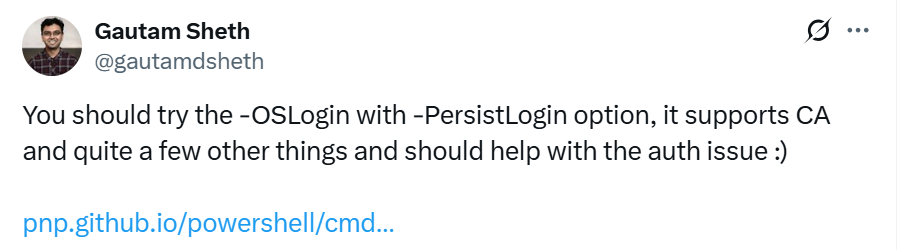
UPDATE: Thank you Gautam Sheth for letting me know their is an parameter for Connect-PnPOnline that helps handle the Conditional Access issue I was having.
It is Sunday morning, and the saga hasn’t finished yet. I still must run the process for another 20 hours or so to complete the job. Will it be finished by Monday morning?
UPDATE: The process completed successfully during the early hours of Monday morning. I got up around 5:30am and the kitten was waiting for me, by her bowl. Happiness has been restored.
P.S.
I can’t finish this post without giving Reshmee Auckloo a big shout out. I used her awesome sample script to get me started with the Sharing reporting. I modified it to read sites from a CSV so I could make the script run for the specific sites I wanted. Thank you Reshmee.
Discover more from SharePoint Moments
Subscribe to get the latest posts sent to your email.
