
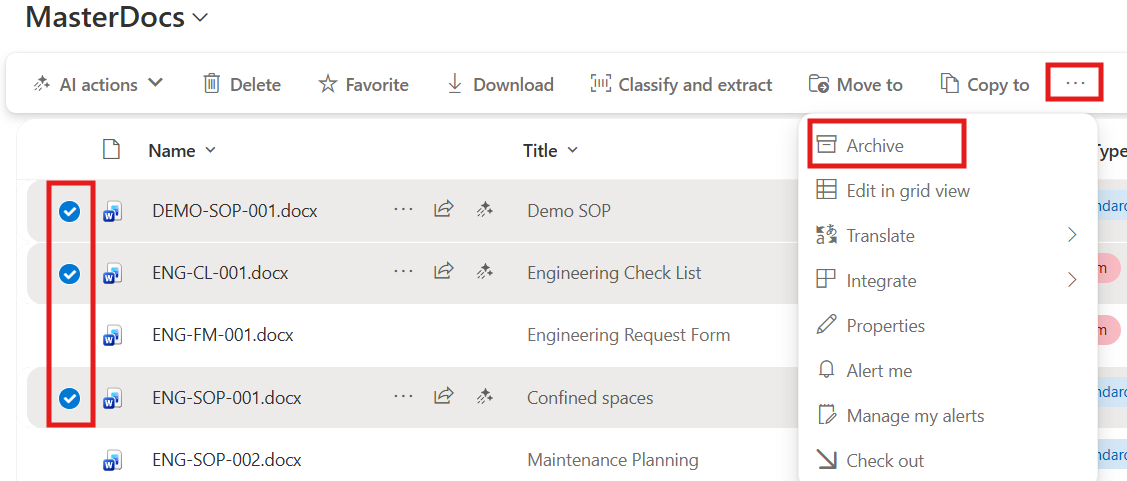
A long awaited improvement to Microsoft 365 Archive has rolled out in preview. When Archive was first launched it allowed SharePoint Admins to select sites and archive the entire site, while this is useful, it often isn’t granular enough and so I was excited to see file level support added to Archive rolling out in my tenant.
This feature allows you to select an individual or group of files for archiving. This is great, because you can create a view containing the files you want to archive, select them all and Archive away!
If you are purchasing extra SharePoint storage, this could save you a lot of money. Microsoft charges $US0.20 per GB/Month for SharePoint storage, Microsoft 365 Archive storage is 75% cheaper at $US0.05 per GB/Month. (learn more)
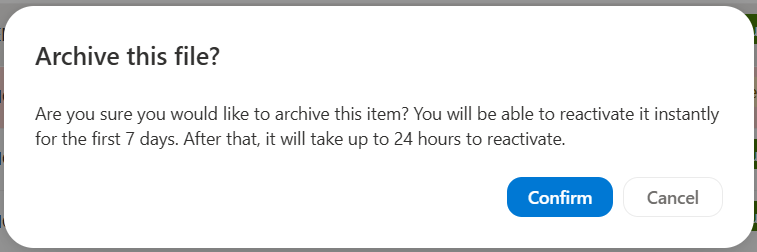
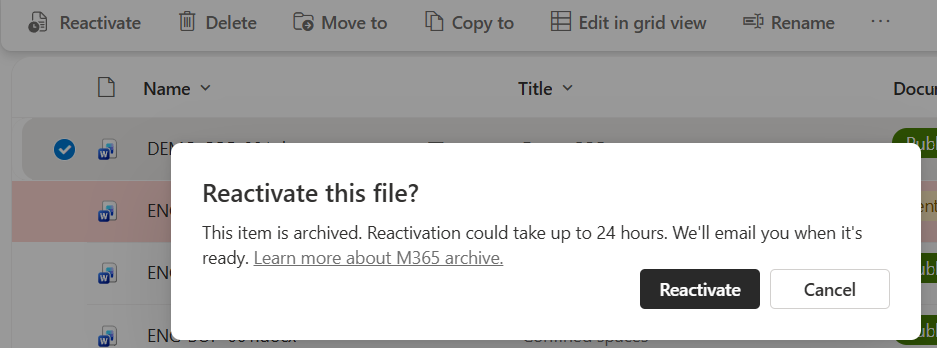
You have 7 days to reactivate instantly archived files. This is good as it makes it quick to recover if you make a mistake. If the file has been archived for longer, then it can take up to 24 hours to reactivate.
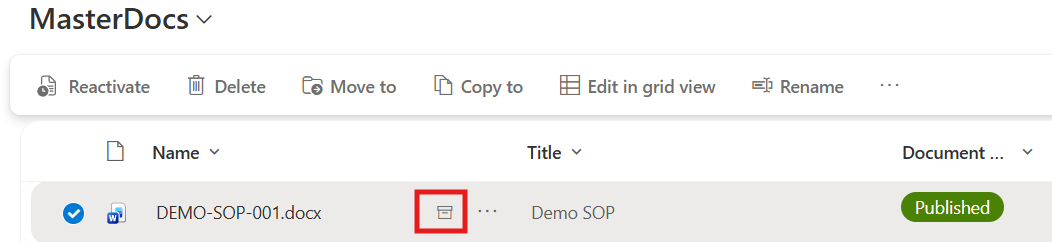
A small icon appears next to the file name to indicate the document is archived. It isn’t possible to hide archived items in the library, however they are excluded from Copilot results.
To restore a document from Archive, right click the file (or select multiple) and choose Reactivate
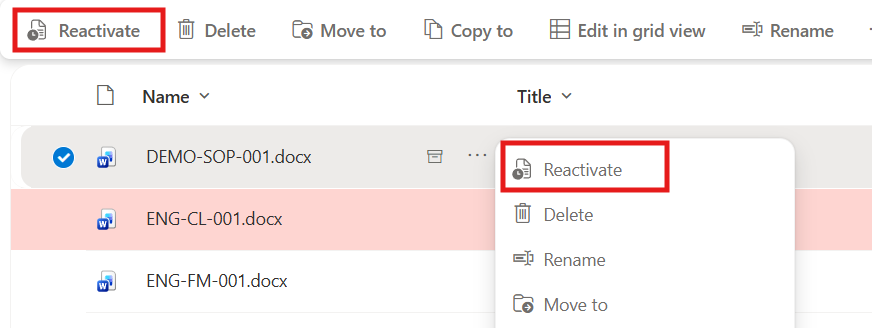
It can take up to 24 hours to restore if more than 7 days has elapsed since the file was archived.
There you have it, a simple solution for archiving files in SharePoint. The archive complies with retention policies and permissions. It just does what it says on the tin, archives the selected files, saving you storage costs.
You can still archive an entire site if needed, but now you can also do individual files, like that giant video that you might need one day or those old proposal documents you just can’t bring yourself to delete.
Microsoft has provided an API for developers to work with and extend Microsoft 365 Archive.
To try this feature, you need to enable Microsoft 365 Archive including a pay-as-you-go Azure subscription for billing. (instructions).
Happy archiving!
Discover more from SharePoint Moments
Subscribe to get the latest posts sent to your email.
