Microsoft are introducing a Pay-as-you-Go option for additional SharePoint storage. Currently if you exceed your tenant storage allowance, you purchase additional storage in blocks and pay for the entire block regardless of how much you actually use. The new model allows you to pay for just the additional storage you consume.
You must opt-in to use the new storage billing model which is linked to a Azure Subscription for billing, the same as Microsoft 365 Backup and Archive.
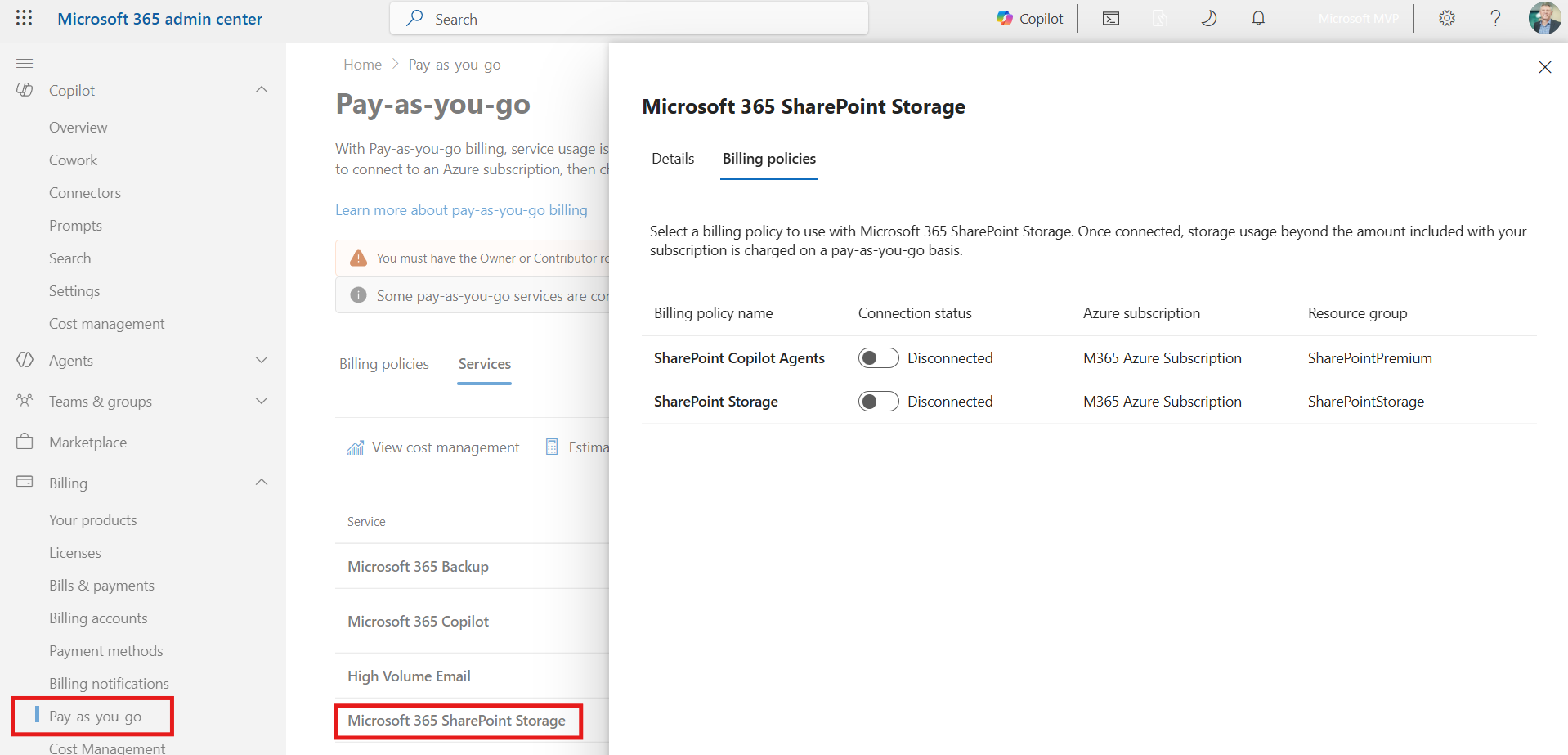
This is convenient option, that reduces costs in some scenarios, but there are some things to consider. Costs can creep up overtime and if you are not actively managing storage you should. I recently witnessed an example where someone was testing a file upload moving over 1TB of content into a site. In the current model, this would hit a storage limit, and everything stops, in the new model it just keeps going.
Retention Policies can also be a challenge here too. If you have long term retention requirements then it is important to have a strategy for content lifecycle management. Moving content to Microsoft 365 Archive reduces the storage costs by 75% if you are over the tenant storage allowance.
As SharePoint Administrators we need to ensure you setup budgets to manage the costs. Configured Azure Cost Monitoring and Alerts so you have visibility and monitor your storage usage.
| Current model | Pay-as-you-Go model |
| Buy extra storage in advance (fixed GB blocks) | Use storage as needed and get billed monthly for what you actually consume |
| Often over‑provisioned | No pre‑planning required |
| Manual monitoring → purchase → repeat | Continuous consumption billing |
| More friction for the Administrator | Almost Frictionless (danger) |
Good to Know
- Storage charges per GB are the same $US0.20/GB at the time of writing.
- You must Opt-in (this is off by default).
- Pay-as-you-Go Storage is in public preview and expected to reach General Availability in September 2026.
- This is a financial + governance decision rather than technical.
How to enable Pay-as-you-Go
In the Microsoft 365 Admin Portal, choose Billing and Pay-as-you-Go and then link your Azure Subscription. This is the Azure Subscription screen, notice the Cost Management and Monitoring options on the left and my tiny bill (yours will be bigger!). Note that you can have multiple services connected to one Subscription or a Subscription per PAYG service in M365 which is good if you need to split costs.

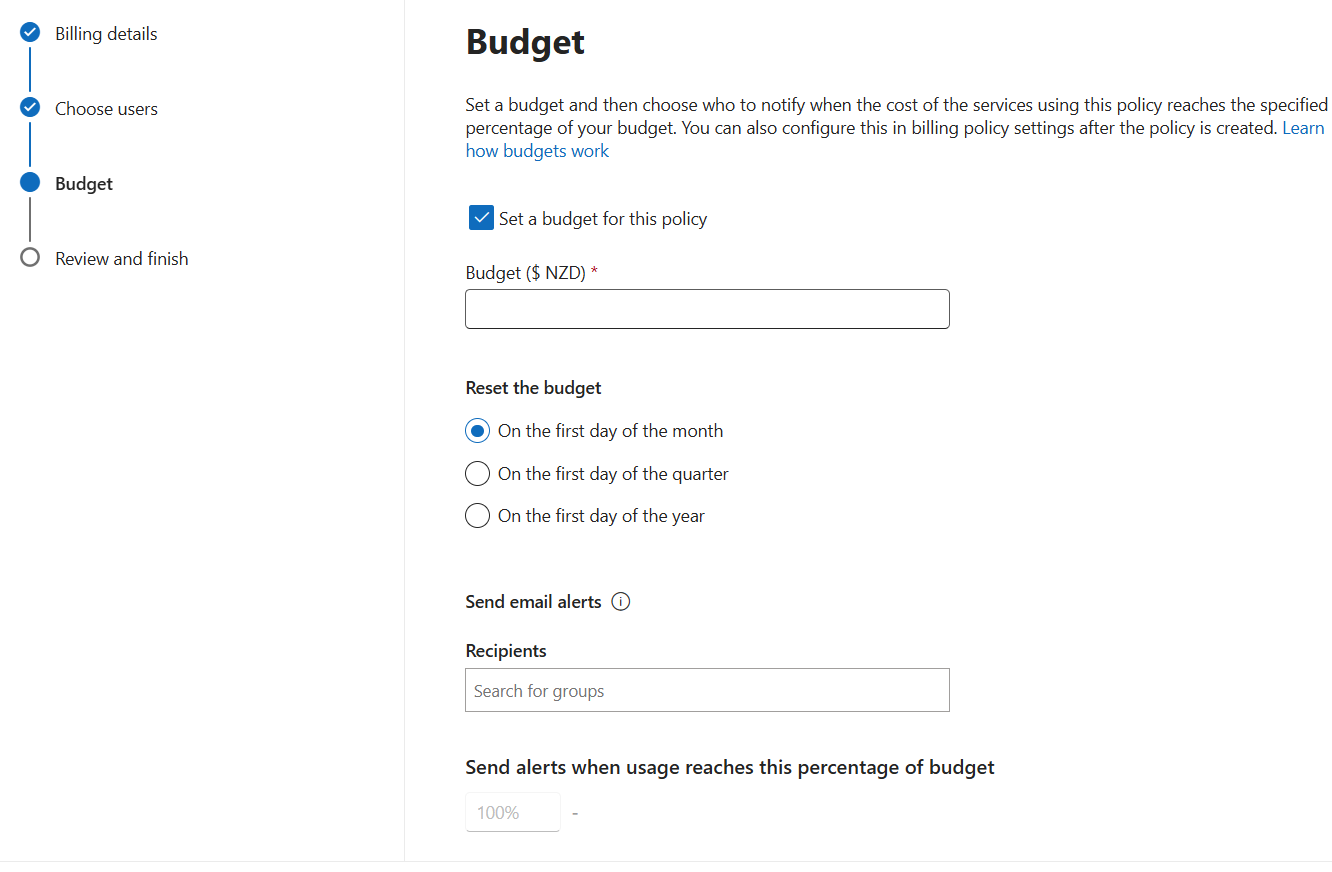
In the Setup you can specify the region (not New Zealand yet) where the storage is allocated and configured budgets.

In the Budget section, set the budget you want and the group to send alerts to
Should you do it?
If you are buying additional storage then you should consider moving to Pay-as-you-Go, especially if you have buying larger blocks to use overtime. You’ll save money on the storage you don’t use upfront.
You should consider the maturity of your governance and information management practices. If these are low maturity then spend a bit of time improving this first, especially if you feel like your storage growth is not under control.
Discover more from SharePoint Moments
Subscribe to get the latest posts sent to your email.
