I am frequently asked if AI can be added to a SharePoint Intranet. The answer is a big yes, it’s actually not very difficult at all and it can add a lot of value for less effort than you might think.
In this example, I have used the SharePoint Agent Link webpart to add a button to my Intranet that opens an Agent in the right hand panel when clicked. This keeps the user in context, they aren’t jumping away from the Intranet to access AI, it’s right there. Agents can also be accessed directly in M365 Copilot.
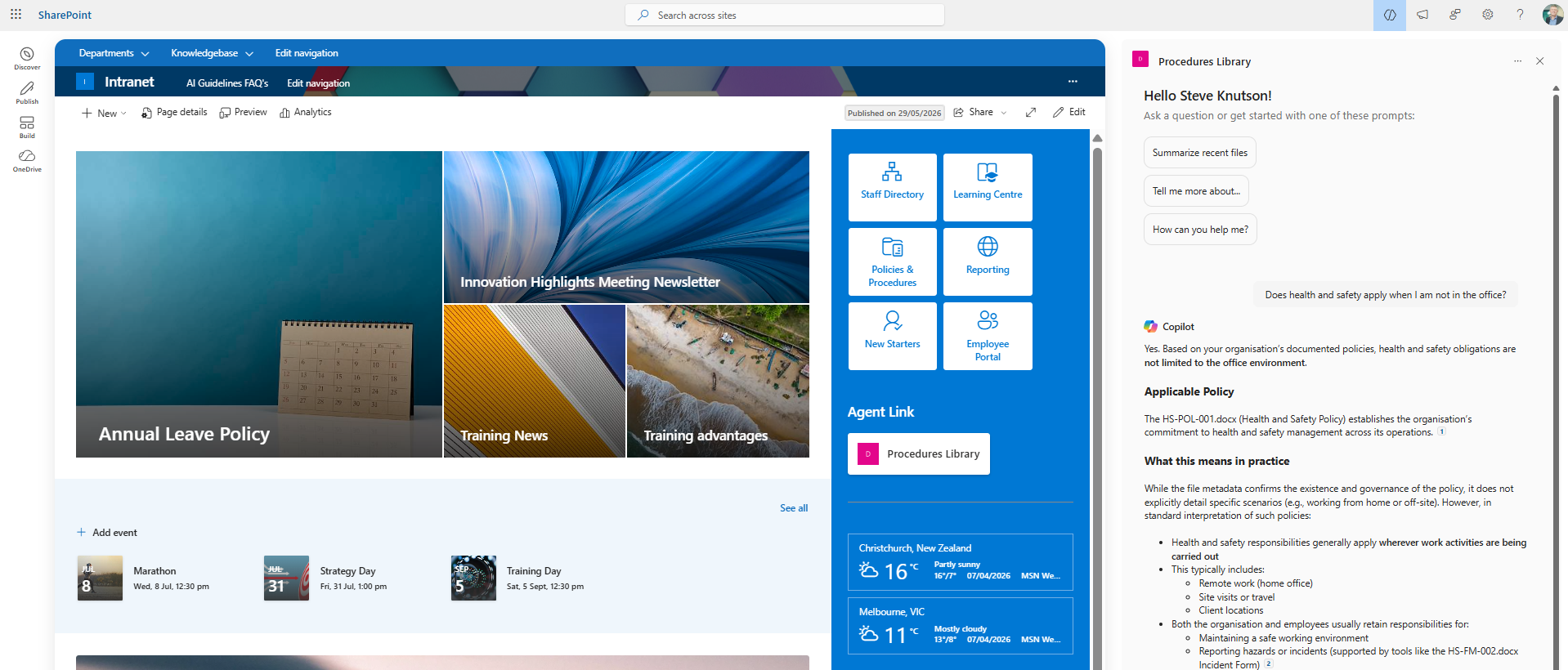
I created an Agent using AI in SharePoint using my “known good” content. In this case, it is a Policy library containing the published versions of my company policies. Make sure the content is current and create processes to ensure it remains up to date over time.

If you users have M365 Copilot licenses then they will be able to access the Agent. If they don’t have licensing then you can create the Agent using Copilot Studio and utilise consumption based licensing, which is often much more cost effective, especially for large organisations where people aren’t office based or don’t have a need for other Copilot functionality.
Your Intranet should be an “Us” space (learn about Me, We & Us), with information available for everyone. If you are using AI, remember Copilot (and AI in SharePoint) runs in the context of the user. Make sure they have access to the content the Agent needs to answer questions.
Avoid adding Agents designed for restricted groups of people aren’t on the home page of the Intranet. These are usually Team or business function specific, so link the Agent in a “We” space those people work in. There may be exceptions, for example a Managers Agent which is not available to general employees. The best place is usually a Managers resource page.
Agents give you control over the content, it can be SharePoint or other data sources (requires Copilot Studio) which means one of the big governance concerns is addressed. You can use AI without having to complete the big tidy up across all content in SharePoint. This doesn’t mean you shouldn’t do that, it just gives you a way to get some runs on the board while that important work is done.
You can learn more about the Policy Library setup, including a video tutorial on how to create it on my YouTube Channel.
Happy SharePointing!
Discover more from SharePoint Moments
Subscribe to get the latest posts sent to your email.
