Microsoft provides an option to swap the root site in SharePoint, but what do you do if you change the URL of a different site? This is a scenario I had recently where we build a new Intranet home site and then used a site URL swap as part of the go-live process.
Before you begin:
- Prepare you new site with temporary URL e.g. /sites/intranet-new
- Decided the URL for the Old site e.g. /sites/intranet-old
- Turn off the retention policy on the the current site and the new site (warning retention turns on again when you change the URL of your site to the “new name e.g. intranet-old”) so have a Admin handy to help with this.
In the SharePoint Admin Centre, select the site and use the Site Address edit option to change the URL. This option is not available if a retention policy is applied to the site. There are some site types that will require additional steps e.g. Group based sites and some sites that you shouldn’t do this on classic sites.
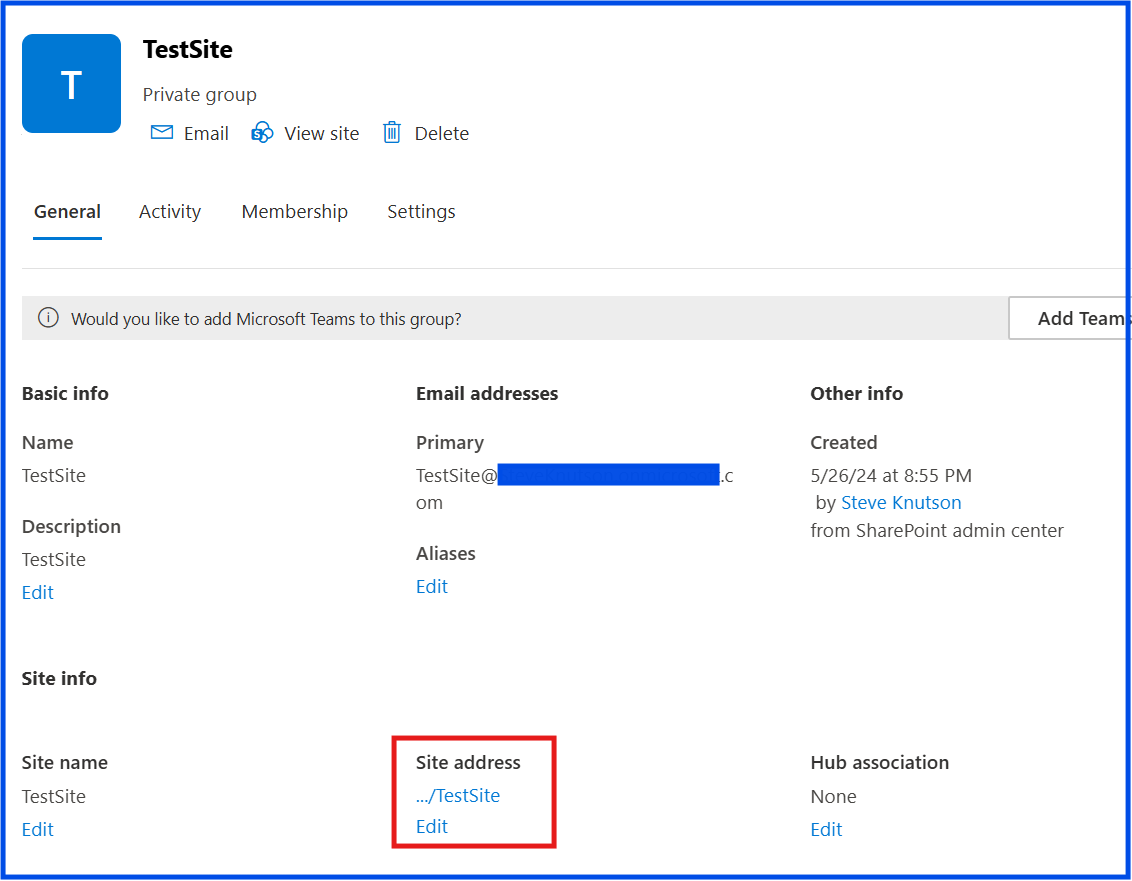
When the URL is changed, the original URL is replaced with a “Redirect URL” which means any links to the old URL will automatically redirect to the new site URL. This is good but it means you can’t reuse the existing URL.
Check to see if the new site has a Retention Policy applied. If it does, you need to remove it again. This happens if you have a catch-all retention policy applied to SharePoint sites.
Next, you need to remove the Redirect URL using PowerShell. Using PnP PowerShell:
#Authenticate your PowerShell session Connect-PnPOnline https://yourtenant-admin.sharepoint.com -clientid xxxxxxxxx -interactive#Use this command to find out what type of site you have using the orginial UR#it should return TEMPLATE = REDIRECTSITE#1 Get-PnPTenantSite -url https://yourtenant.sharepoint.com/sites/yoursiteURL #Use this command to remove the redirectURL. If you get an error, it is usually due to a retention policy.REMOVE-PnPTenantSite -url https://yourtenant.sharepoint.com/sites/yoursiteURL -force#Use this command to see if a retention policy is applied to your redirect siteGet-PnPTenantSite -Url https://yourtenant.sharepoint.com/sites/yoursiteURL -Detailed | Select Url, Title, HasHolds, Lockstate
Now the URL should be free and you can change the URL on your new site in the Admin Centre using the same method above.
Your job isn’t done yet. There are some things that you will need to fix:
- Home Site URL needs to be removed and replaced if it was using the URL that was changed.
- Navigation links
- Hub site associations
- Run a Full Site reindex
- Check Viva Connections dashboards and settings.
Some things take a little time, so it is a good idea to wait a couple of hours for everything to settle into place before breaking into a panic! (voice of experience). I would do this job in the evening rather than during work hours.
Discover more from SharePoint Moments
Subscribe to get the latest posts sent to your email.
