
There are many tools that can be used to get analytics for SharePoint including the built in usage analytics. Google Analytics includes more advanced capabilities including tracking user interactions, file downloads and button clicks. It has an advanced dashboard with read-time reporting and segmentation of user attributes such as devices and locations.

So how do you add Google Analytics to SharePoint Online?
Start by setting up a Google Analytics Account and configure using the setup wizard. This will create a Google Analytics code in the format G-xxxxxxxx. You will need this code to link your Intranet to the Google Analytics account.
Next, you will need a way to load the Google Analytics javascript snippet. I like using an SPFx Application Customiser. I have one that can also load CSS and Javascript files that is added to each site where I want to use analytics e.g., Intranet sites. There is a good SPFx example that can help get you started (SPFx Customiser to add CSS and Javascript).
Create a Javascript file to use with the Application Customiser. Save this code as GoogleAnalytics.js and upload it to the location your application customiser loads from (replace the G-xxxxxxxx code in with your Google Analytics code)
function initializeGoogleAnalytics(trackingId) {
  // Create the dataLayer array if it doesn't exist
  window.dataLayer = window.dataLayer || [];

  // Define the gtag function
  function gtag() {
    window.dataLayer.push(arguments);
  }

  // Load the gtag.js script dynamically
  const script = document.createElement('script');
  script.async = true;
  script.src = `https://www.googletagmanager.com/gtag.js?id=${trackingId}`;
  document.head.appendChild(script);

  // Initialize gtag with the current date and tracking configuration
  gtag('js', new Date());
  gtag('config', trackingId);
}

// Call the function with the tracking ID
initializeGoogleAnalytics('G-xxxxxxxxxxx');
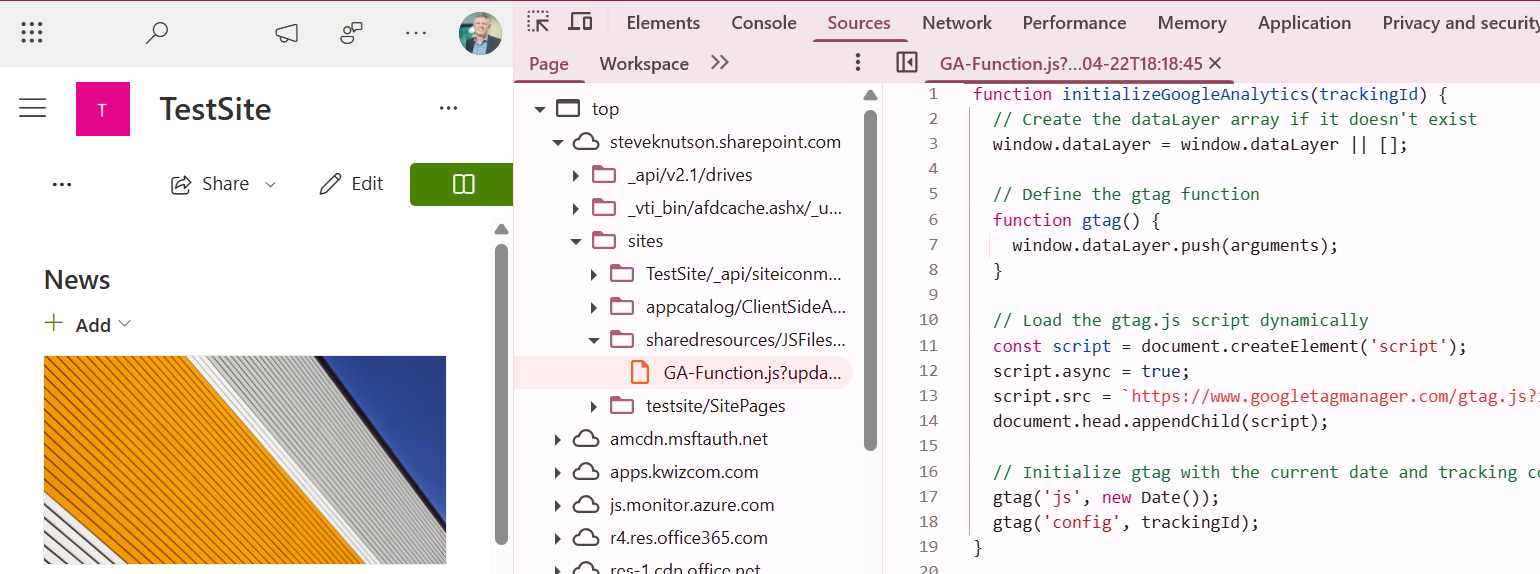
Now go into Google Analytics and check the real-time analytics. If you aren’t seeing data flow through, use the Dev Tools in your browser to confirm the code is loading:
Using Google Tag Manager allows you to track not only what was clicked but also where the click was made. For example, did the reader click the news post from the home page or a link from somewhere else. Which navigation items are popular and which aren’t? Did the user get to a page by using a Quick Link on the home page or the navigation from the menu? You get the picture, it is very powerful if you want to get more comprehensive analytics on your SharePoint site.
The most common concern about using Google Analytics is privacy. Google does provide a statement here that is reassuring. Google Tag Manager Data Privacy and Security statement. You should however check who else has access to your Google Analytics as this is often third-parties, who may look after your website or online marketing.
How to configure CSS Selectors in Google Tag Manager
There are other ways to add Google Analytics, including a dedicated SPFx Customiser for Google Analytics and custom code options in some branding solutions and Intranet solutions for SharePoint. This is the one that works for me, so I hope you find it useful 🙂
Learn more about SPFx Application Customisers
Discover more from SharePoint Moments
Subscribe to get the latest posts sent to your email.
